
Installing libraries
Not all functionality you might need for your project is included in the Arduino IDE by default. Fortunately, there are many libraries available that you can use.
Library Manager
The easiest way to install a library is via the Library Manager in the Arduino IDE. Go to Sketch > Include Library > Manage Libraries... and search for the library you want to install. Click the library and then click the Install button.
You can also open the Library Manager using the Library Manager button in the Arduino IDE toolbar.
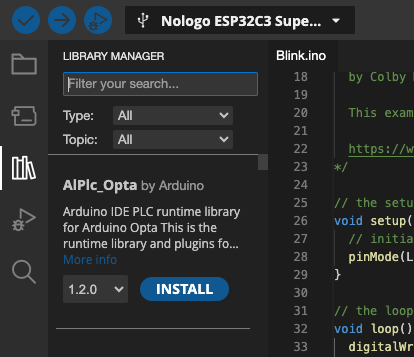 |
|---|
| Arduino Library Manager |
Using libraries
Once a library is installed you can start using it in your project. In the Arduino IDE go to Sketch > Include Library and select the library you want to use. The library’s code will then be added to your project.
You can also use the library by adding the following line of code at the top of your sketch:
1 | |
Replace librarynaam with the name of the library you want to use.
Learn more
See the official Arduino website for more information about using libraries in the Arduino IDE.